

Updated November 2026
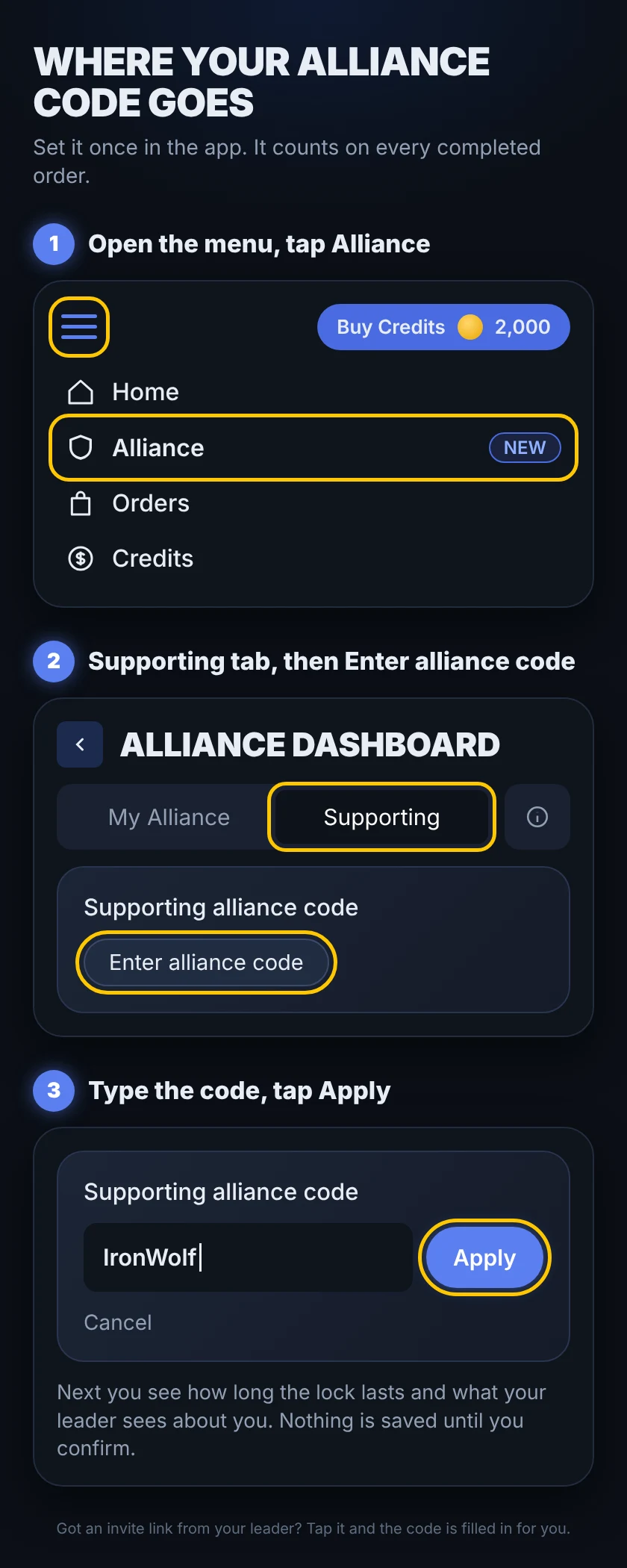
Short answer: Tap the invite link your leader shared, or open the Packsify app menu, tap Alliance, open the Supporting tab, tap Enter alliance code, type their code and tap Apply. Before anything is saved you see how long the lock lasts and what your leader sees about you.
If your alliance just started using Packsify, you may look for the code field at checkout and not find it. It moved. Here is where it is now.
Two ways to add an Alliance code
1. Tap the invite link (easiest)
Your leader can share an invite link from their Alliance Dashboard. Tap it and you see the confirm screen with their code ready, so nobody has to type anything. Nothing is saved until you confirm.
2. Enter the code in the app
- Open the menu (the three lines at the top left) and tap Alliance.
- On the Alliance Dashboard, open the Supporting tab.
- Tap Enter alliance code.
- Type your leader's code and tap Apply.
- Read the next screen: how long the lock lasts and what your leader will see about you. Accept the Alliance Dashboard terms there and confirm.
The code also works typed by hand, for example when someone sends it in chat. The link is just faster.
Before you start: username and game ID
You need a username and your game ID on your Packsify account before you can support a code. If the app won't let you add one, check those two first.
Where did the code field at checkout go?
It moved to the Supporting tab. Your Alliance code now stays attached to your account, so it counts on every completed order. You set it once instead of typing it at every checkout. If a creator gave you their code, it works the same way: it is an Alliance code, and it goes in the same place.
What your leader sees about you
You see this list on the confirm screen before you agree, and nothing is saved until you confirm. Your leader sees four things, nothing else:
- Your username, unless you hide it
- The total you spend using their Alliance code
- Your first order date
- Your last order date
No email, no payment details, no game account. You can hide your username at any time with the Show my username toggle on the Supporting tab. The total and the two dates stay visible to them.
Does supporting a code cost you anything?
No. Your price is exactly the same with or without a code. The rewards your leader gets come from Packsify, not from your order. If you get a member share, it appears in your credits automatically, and the Supporting tab shows it.
Switching or stopping
Every code you add starts a lock. The confirm screen shows how long it lasts before you agree. While the lock runs you can't switch or stop, which keeps things fair for the person you chose to support. When it ends you can switch, and the new code starts a fresh lock.
Already supporting someone and got another invite link? Nothing changes on its own. You see a notice that you already support a code, and you can switch only once your lock has ended.
Why the app won't add a code
- No username or game ID yet. Add both first.
- It is your own code. You can't support yourself.
- You support each other. If your friend supports you, you can't support them back.
- The code is not active anymore. Ask your leader for the current one.
- Your account doesn't meet the program conditions.
The app tells you what it can on the spot. If none of these fits, open the chat in the app and our team will check it with you.
Lead an alliance yourself?
You can support someone and still have your own Alliance code. Those are separate. Your own code unlocks after one completed order and accepting the terms in the Meet Alliance intro, in the menu at the top of the Alliance tab. Then you share your invite link with your people and follow your members' totals and order dates in your dashboard.
Full details on supporting a code are in our help center: Alliance: Supporting a code.
Spotted a mistake? Tell us in the Play Smarter Discord and we will fix it.

FAQ
Where do I put an Alliance code on Packsify?⌄
Does supporting an Alliance code make my orders cost more?⌄
Can I change the Alliance code I support?⌄